
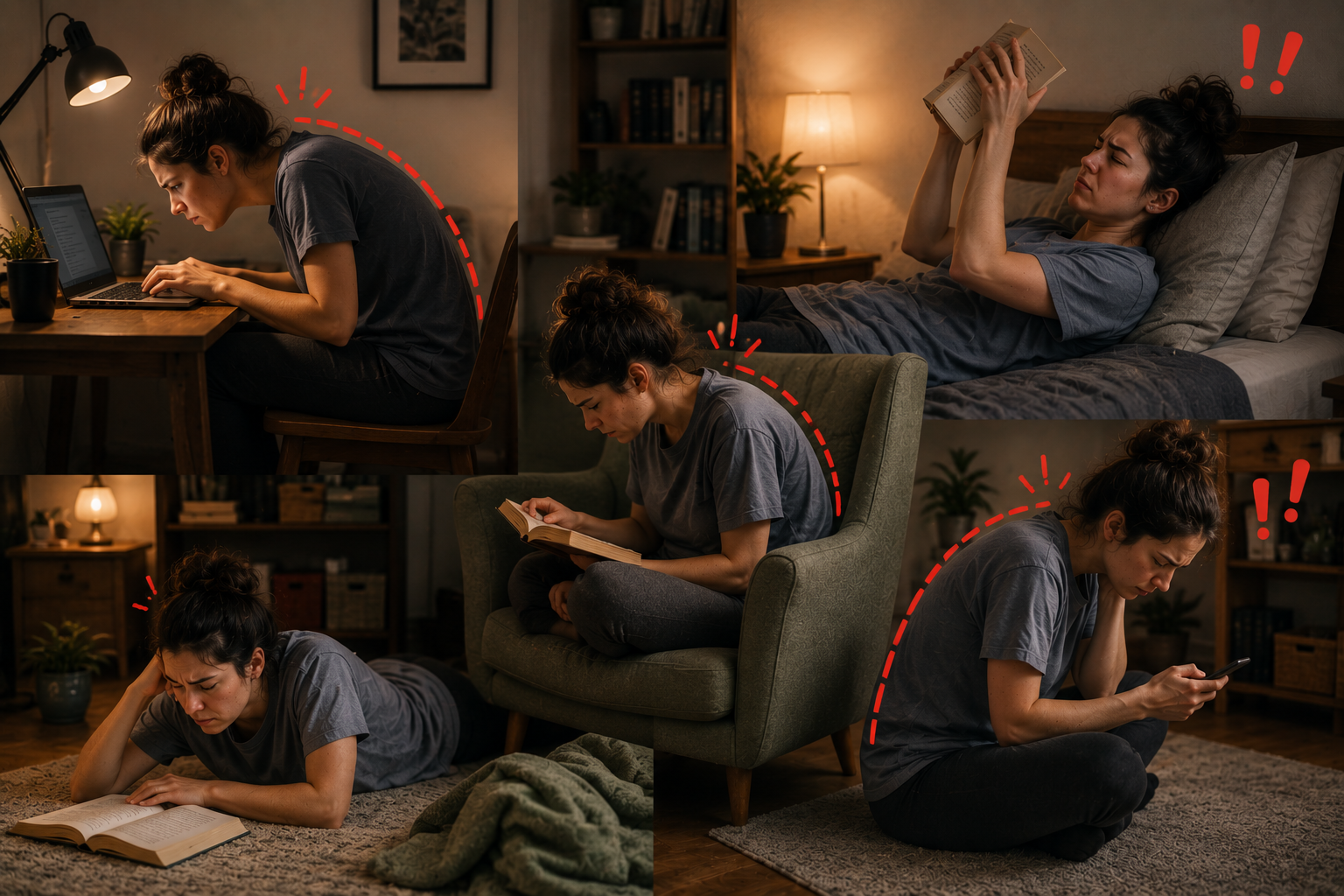
You begin the day sitting comfortably.
An hour later, your head has drifted toward the screen, your shoulders are raised, and your face is much closer to the display than when you started.
Your eyes feel tired, but the discomfort may not be coming from the eyes alone.
Posture can make eye strain worse by changing your viewing distance and adding muscular tension around the head, neck, shoulders, and face. Leaning forward may make text appear larger, but it can also increase near-work demand and turn a visual task into a full-body effort.
Posture does not change your prescription or directly damage your eyesight.
It changes the conditions under which you are trying to see.
Eye Strain Is Not Always Confined to the Eyes
Digital eye strain can include:
- aching around the eyes
- headaches
- temporary blur
- difficulty maintaining focus
- neck discomfort
- shoulder tension
- facial tightness
A comprehensive review of digital eye strain describes visual, ocular, and musculoskeletal symptoms as parts of the same broad screen-related problem.
That does not mean neck tension changes the optical power of your eyes.
It means several sources of discomfort can build during the same task and be experienced as one problem:
My eyes are tired.
The visual system is working while the body is holding the position required to support that work. When the position becomes strained, the entire experience becomes harder to sustain.
The Forward-Lean Loop
Leaning toward a screen often begins as a practical adjustment.
The text looks small or slightly unclear, so you move closer. The content immediately appears larger and easier to see.
That short-term improvement can create a loop:
- The text becomes difficult to see comfortably.
- You move your head toward the screen.
- The text appears larger.
- Your neck and shoulders hold a less comfortable position.
- The closer distance increases near-work demand.
- Fatigue develops.
- You lean even closer to compensate.
The posture is not necessarily the original problem.
It may be the body’s attempt to solve another one.
Possible triggers include:
- text that is too small
- glare
- poor contrast
- fatigue
- an outdated prescription
- glasses poorly suited to computer distance
- simple habit
This is why telling someone to “sit up straight” often fails.
If the screen is difficult to see from a comfortable position, the body will eventually move back toward it.
The setup must make good posture possible.
Viewing Distance and Text Size Must Work Together
A screen placed farther away is not automatically more comfortable.
If the text remains small, you may compensate by pushing your head and torso forward.
A study examining visual-display distance, head posture, and symptoms found that participants moved closer when the monitor was positioned farther away but character size remained unchanged.
The lesson is simple:
Increasing screen distance without increasing readability can create worse posture rather than better ergonomics.
Common guidance places a desktop monitor approximately at arm’s length, but this should be treated as a starting point rather than an exact commandment.
A comfortable distance depends on:
- monitor size
- text size
- display resolution
- prescription
- type of work
- individual comfort
You should be able to read ordinary content without:
- projecting the head forward
- squinting
- narrowing the eyes
- lifting the chin
- repeatedly moving closer
Before correcting your posture, correct the readability.
Increase the font size, browser zoom, or interface scaling until the screen can be viewed comfortably from a normal seated position.
Do not make your spine perform optical correction.
Screen Height Changes Head Position
Monitor height affects how the head and neck must be held.
When the screen is too high, you may:
- lift the chin
- tilt the head backward
- raise the eyes for long periods
- hold the neck rigid
When it is too low, you may:
- bend the neck forward
- collapse through the upper back
- bring the face closer to the display
Neither extreme is ideal.
Research on preferred display position and visual strain found that users generally preferred displays positioned for a slightly downward viewing angle rather than screens placed high above the natural line of sight.
The US Occupational Safety and Health Administration similarly recommends positioning the monitor directly in front of the user, with the top of the screen around or slightly below eye level.
The goal is not to force the head downward.
It is to let the head remain balanced while the eyes look slightly down toward the main working area.
Rigid Posture Can Turn Visual Effort Into Physical Tension
Concentrated screen work often makes people unusually still.
Without noticing, you may:
- clench the jaw
- tense the forehead
- raise the shoulders
- narrow the eyes
- hold the head forward
- stop changing position
None of these behaviours necessarily damages vision.
They can, however, create discomfort around the eyes, temples, forehead, neck, and shoulders.
That discomfort can then affect reading and concentration. You become more aware of the strain, reread more often, and lean toward the screen again.
The result is a reinforcing pattern:
visual difficulty → postural compensation → muscular discomfort → greater perceived strain
The solution is not perfect posture held with military discipline.
A rigid “correct” position can become uncomfortable too.
The better aim is a comfortable starting position with regular movement.
Why “Sit Up Straight” Is Not Enough
Posture advice often focuses on the person while ignoring the workstation.
But your body responds to what the task demands.
If the screen is:
- difficult to read
- positioned to one side
- too high
- too low
- too far away for the current text size
you will eventually adjust your body to see it.
Good posture is therefore not a performance you impose on yourself.
It is the result of a setup that does not continually pull you into compensation.
Instead of asking:
Why can’t I maintain good posture?
Ask:
What is making me abandon it?
That question usually produces more useful answers.
A More Comfortable Screen Position
Use these as adjustable starting points rather than rigid measurements.
Place the screen directly in front of you
Your main monitor should not require the head to remain rotated for long periods.
If you use two screens, place the one used most often directly ahead.
Keep the top of the monitor near or slightly below eye level
This generally supports a mild downward viewing angle without forcing the chin upward or the neck downward.
People using progressive or bifocal lenses may need a lower screen position to avoid lifting the head to see through the correct part of the lens.
Adjust text before moving closer
Increase:
- font size
- browser zoom
- display scaling
- contrast where needed
Make the content readable from the position you want to maintain.
Use distance and text size together
Begin around arm’s length, then adjust both variables.
If you move the monitor farther away, increase the text size accordingly.
Keep the head balanced
The ears should remain roughly above the shoulders rather than far in front of them.
Do not force the chin backward aggressively. Simply avoid allowing the head to drift closer as the session continues.
Relax the shoulders and jaw
Shoulders should not remain lifted while typing.
Allow the jaw and forehead to soften rather than maintaining a constant expression of suspicion toward the spreadsheet.
Change position regularly
Stand, move, look farther away, and reset your position between work blocks.
The best posture is not one pose held for eight hours.
It is one you can leave and return to comfortably.
A Two-Minute Posture Test
Sit as you normally work.
Do not correct anything yet.
Ask:
- Can I read the screen without leaning forward?
- Is my head closer to the display than my torso?
- Is my chin lifted?
- Are my shoulders raised?
- Is the monitor directly ahead?
- Does enlarging the text allow me to sit back?
- Do I move closer as the session continues?
Then make three adjustments:
- increase the text size
- move the screen to a comfortable distance
- place the main viewing area slightly below eye level
Work for several minutes and notice whether the head remains more naturally aligned.
If you have to constantly remind yourself to sit correctly, the setup may still be asking for compensation.
Your Posture May Be Revealing a Vision Problem
Repeatedly moving closer is sometimes more than a habit.
It can indicate that the screen is not comfortably clear at the intended distance.
Possible reasons include:
- an outdated glasses prescription
- uncorrected astigmatism
- developing presbyopia
- glasses designed for a different distance
- contact-lens discomfort
- one eye seeing less clearly
Try improving text size, screen position, and contrast.
If you still need to lean unusually close, an eye examination may be more useful than another posture reminder.
The body may be reporting a visual problem before you consciously recognise the blur.
Explore See Clarity Now for a structured approach to screen habits, visual comfort, posture, and eye–brain performance.
The program supports better habits and working conditions. It does not replace prescription correction, diagnosis, an eye examination, or medical treatment.
When Posture Changes Are Not Enough
Arrange an eye examination when:
- you repeatedly need to move closer to see clearly
- blur remains after improving the setup
- headaches regularly accompany screen work
- one eye consistently sees differently
- glasses no longer provide comfortable computer vision
- you experience double vision
- posture adjustments provide little relief
Persistent neck or shoulder pain may also deserve assessment from an appropriate healthcare professional.
Posture can amplify visual discomfort.
It should not become a convenient explanation for symptoms that remain after the working conditions improve.
Final Takeaway
Posture does not weaken your eyes or change your prescription.
It changes how the visual task is performed.
Leaning forward can shorten the viewing distance and increase physical effort. Poor monitor height can force the head and neck into an uncomfortable position. Rigid concentration can add facial and shoulder tension to an already demanding task.
Improve the setup before blaming your posture:
- make the text readable
- place the screen directly ahead
- use a comfortable distance
- keep the main viewing area slightly below eye level
- move before tension becomes strong
Good posture should follow clear, comfortable vision.
It should not have to fight for survival against the screen.
Find the Layer Creating the Most Friction
Screen discomfort may involve posture, visual clarity, focusing demand, dryness, attention, or several layers working together.
Take the MindTecton Assessment to identify which layer is currently limiting how efficiently you work, learn, read, remember, and perform.
Sources
- Kaur K, Gurnani B, Nayak S, et al. Digital Eye Strain: A Comprehensive Review. Ophthalmology and Therapy. 2022.
https://pmc.ncbi.nlm.nih.gov/articles/PMC9434525/ - Rempel D, Willms K, Anshel J, Jaschinski W, Sheedy J. The Effects of Visual Display Distance on Eye Accommodation, Head Posture, and Vision and Neck Symptoms. Human Factors. 2007.
https://pubmed.ncbi.nlm.nih.gov/17915601/ - Jaschinski W, Heuer H, Kylian H. Preferred Position of Visual Displays Relative to the Eyes: A Field Study of Visual Strain and Individual Differences. Ergonomics. 1998.
https://pubmed.ncbi.nlm.nih.gov/9674376/ - Occupational Safety and Health Administration. Computer Workstations: Monitors.
https://www.osha.gov/etools/computer-workstations/components/monitors - American Optometric Association. Computer Vision Syndrome.
https://www.aoa.org/healthy-eyes/eye-and-vision-conditions/computer-vision-syndrome